

Connect BurgerPrints
BurgerPrints needs a single API key. Connect checks it and sets up the tracking webhook for you — there is nothing to paste back into BurgerPrints.
1 Open Stores in BurgerPrints
Log in to your BurgerPrints dashboard and open Stores in the left sidebar. Under your store's name, press Get API key.
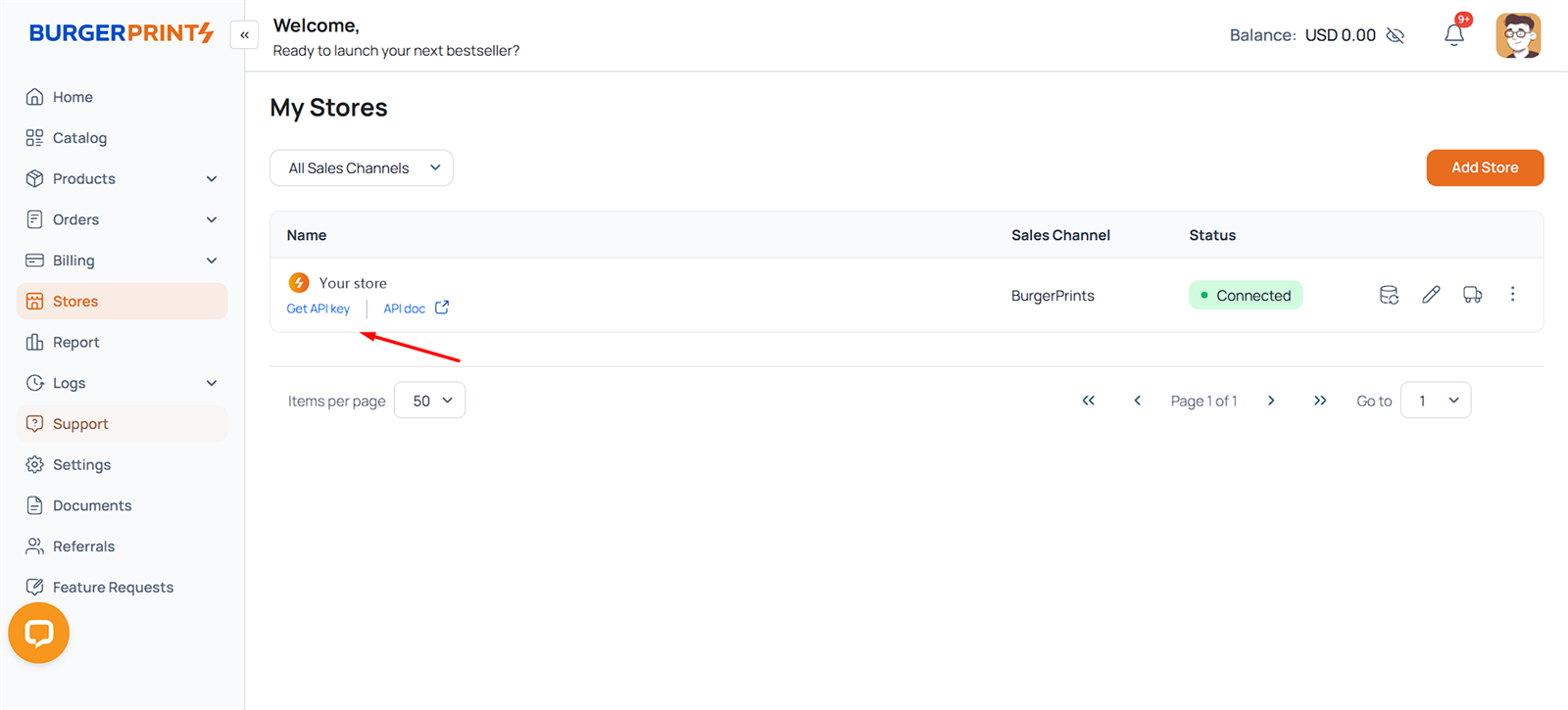
No store in the list yet? Create one with Add Store first, then come back to this page.
2 Copy the API key
The Get API key dialog shows your key. Press the copy icon at the right end of the field.
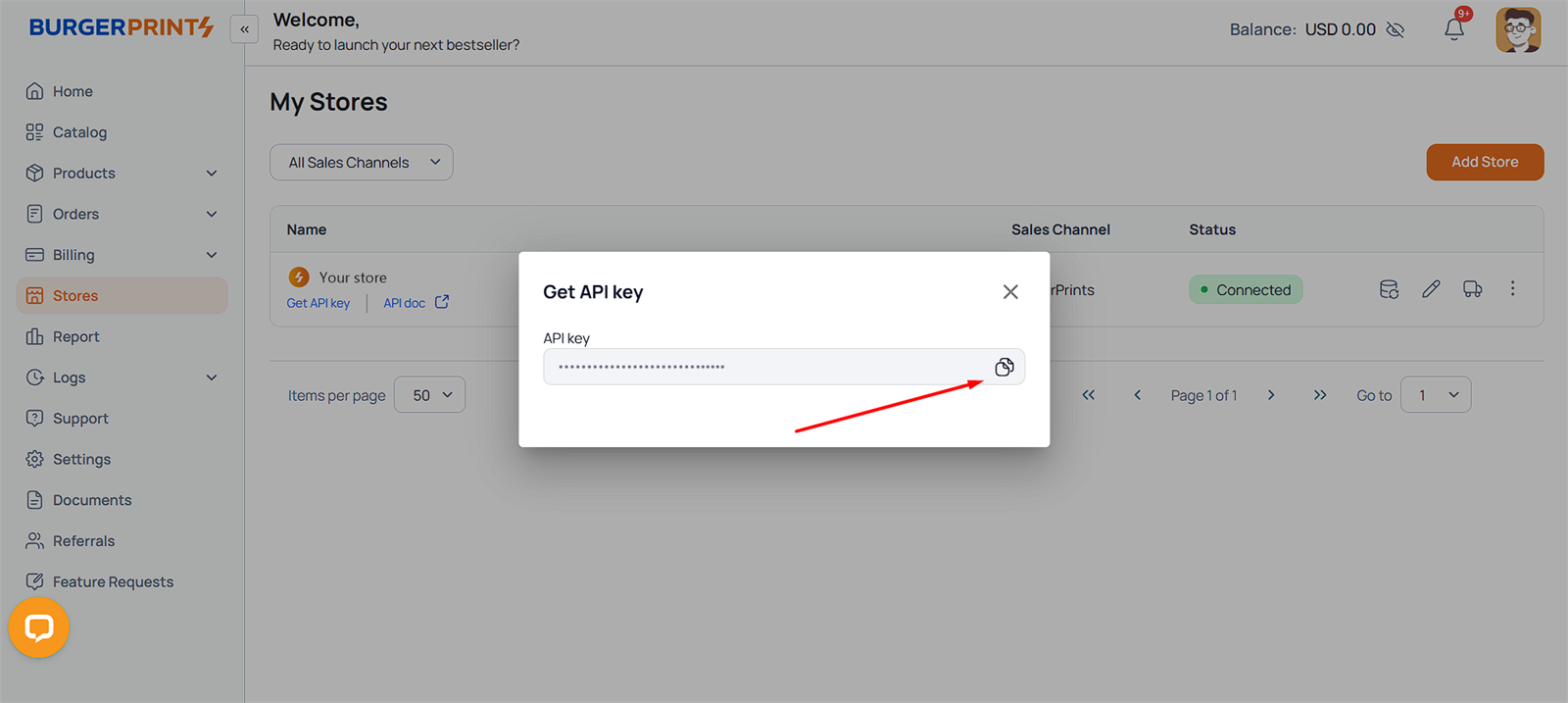
Treat the key like a password: anyone who has it can place orders on your BurgerPrints account.
3 Connect it in Podgene
- In Podgene, open Settings › Fulfillment Configuration and choose Custom (Your Keys).
- Open the Burgerprints card, paste the key into API Key and press Connect.
- When it reports success, press Save at the bottom of the page — Custom mode only takes effect once saved.
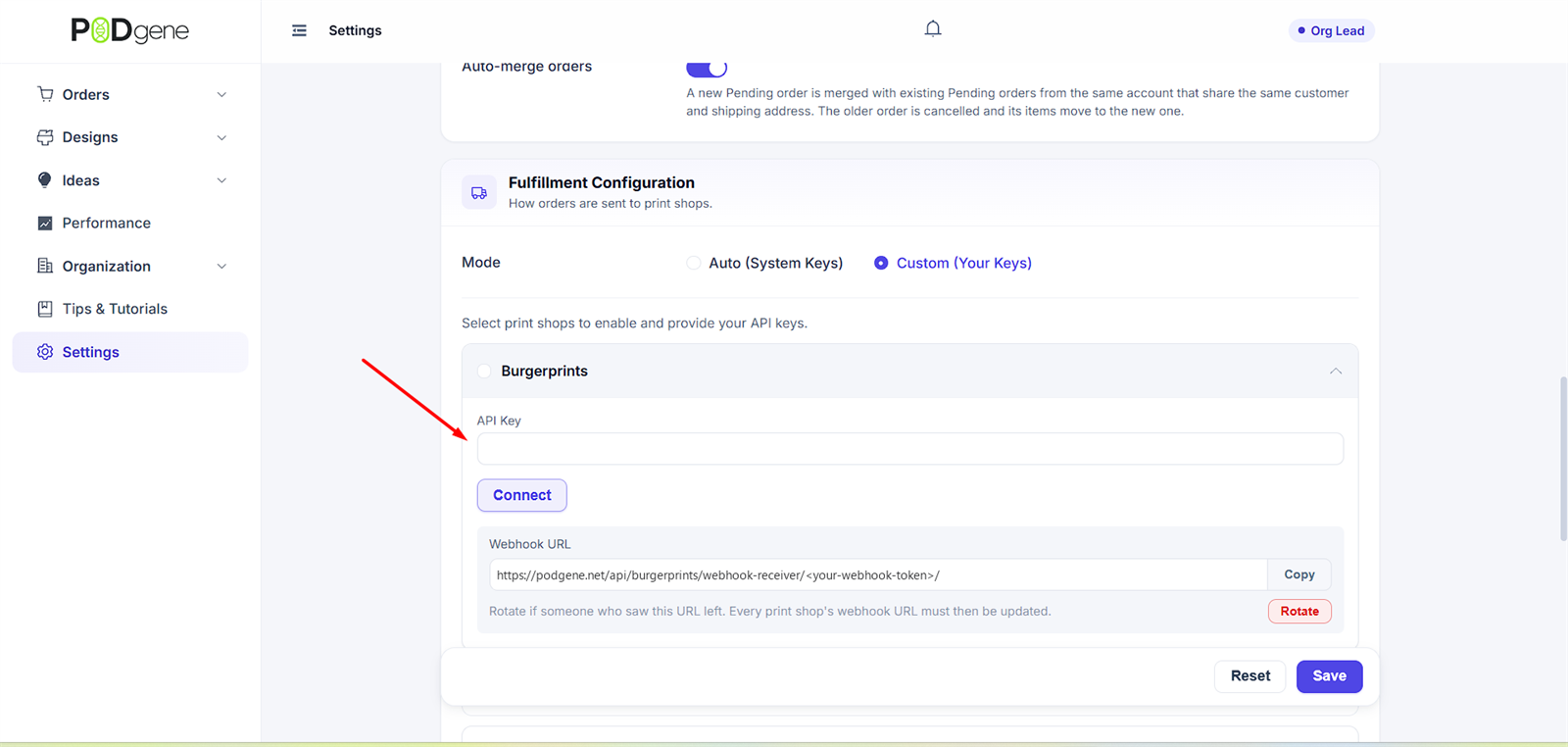
A successful Connect reports:
Connected to BurgerPrints successfully. Tracking webhook registered automatically.
The Burgerprints card is ticked automatically. Orders you send to BurgerPrints from then on are placed on your own BurgerPrints account and billed there (see Billing in BurgerPrints) — Podgene does not deduct the print cost from your Podgene balance.
You do not need to copy the Webhook URL into BurgerPrints: Connect registers it for you, and every order Podgene sends also carries its own tracking callback.
After you press Rotate on the webhook URL, press Connect again so BurgerPrints gets the new URL. Orders sent before the rotation still carry the old callback URL, and tracking updates sent to it are rejected.
If Connect fails
| Message | What to fix |
|---|---|
| API Key was rejected | The key was copied incompletely or has been replaced. Copy it again from Stores › Get API key. |
| BurgerPrints did not respond in time / Could not reach BurgerPrints | BurgerPrints is temporarily unreachable. Try Connect again in a few minutes. |
| Automatic webhook registration failed … | The key works, but the tracking webhook was not set. Press Connect again. |
| Custom mode requires at least one connected print shop (on Save) | Press Connect on the Burgerprints card first, then Save. |