

Connect Mangoteeprints
Mangoteeprints needs a single API key. Connect checks it and sets up the tracking webhook for you — there is nothing to paste back into Mangoteeprints.
1 Open API & DOC in Mangoteeprints
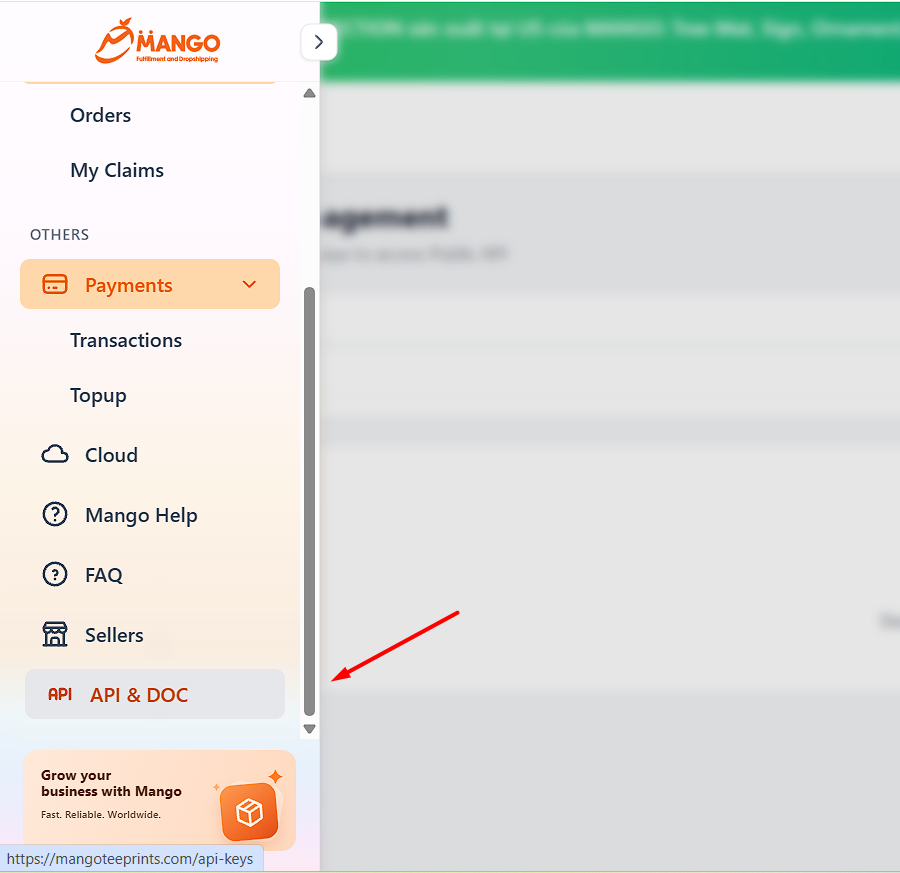
Log in to your Mangoteeprints account and open API & DOC at the bottom of the left sidebar (mangoteeprints.com/api-keys).
2 Create an API key
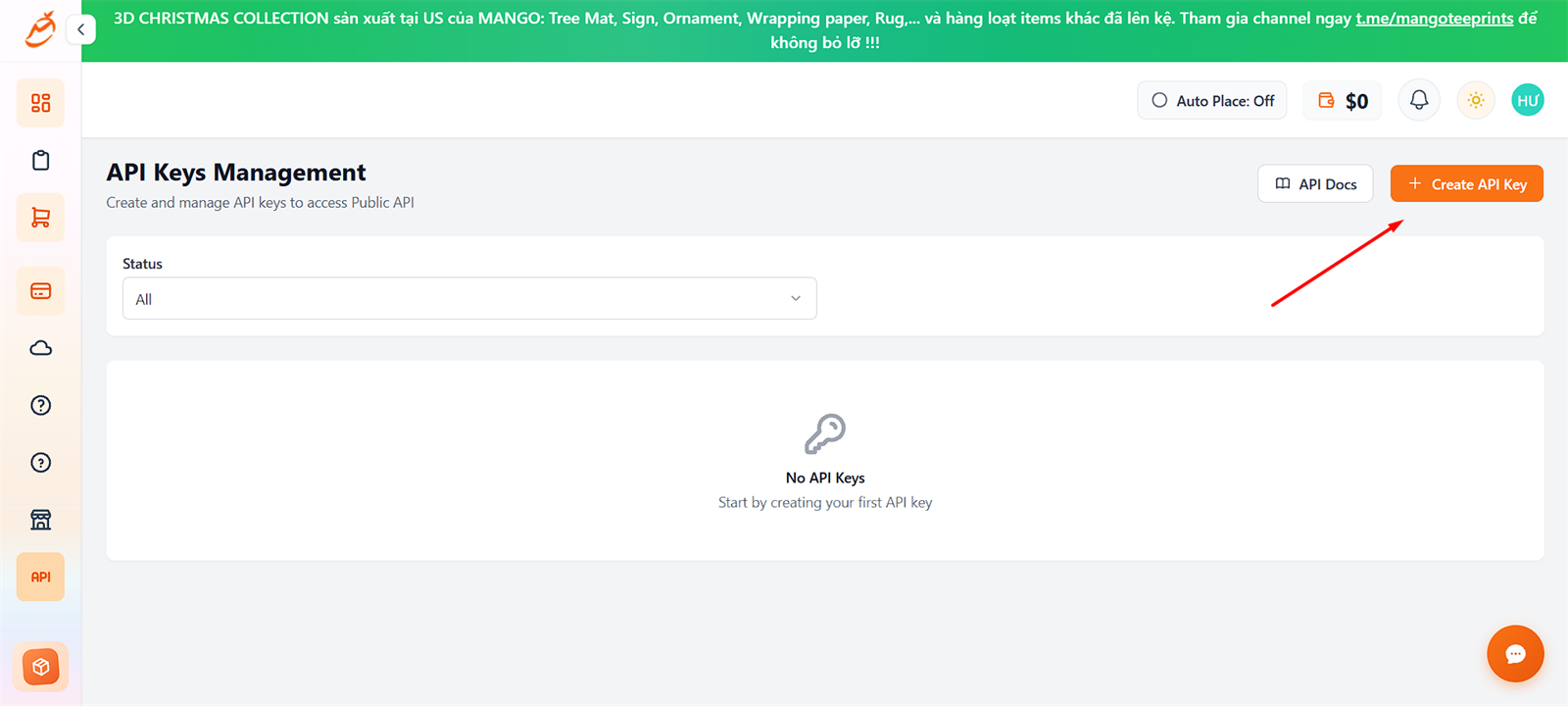
On API Keys Management, press Create API Key.
In the form that opens:
- Permissions — leave every permission ticked. Podgene uses this key to create and read orders and to register the tracking webhook.
- IP Whitelist — leave it empty. Podgene calls Mangoteeprints from its own servers; a whitelist that does not include them blocks every request.
- Expiration — pick the longest option available. When the key expires, create a new one and connect again.
Then press Create API Key at the bottom of the form.
3 Copy the key
Mangoteeprints shows the full key only once. Press Copy before you close the dialog with I've Saved the API Key Securely.
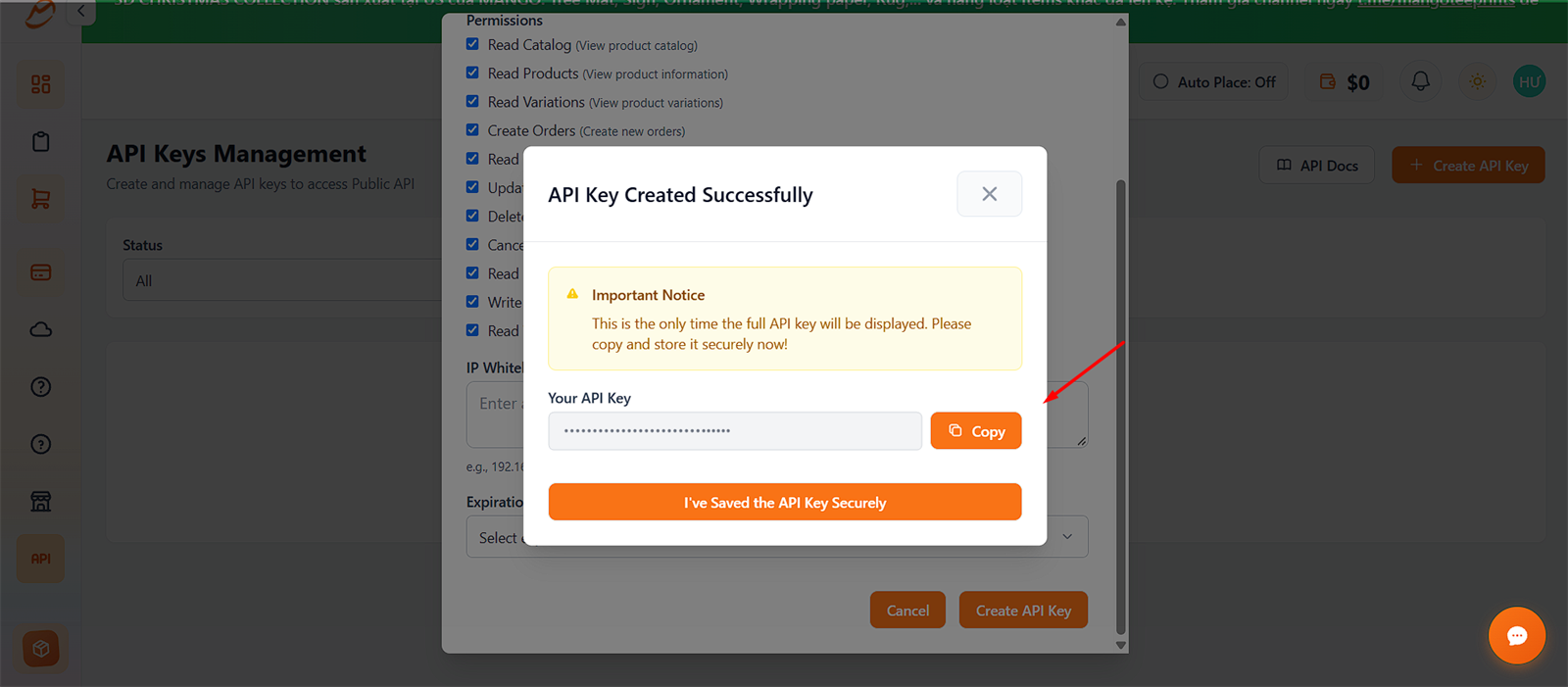
Treat the key like a password: anyone who has it can place orders on your Mangoteeprints account.
4 Connect it in Podgene
- In Podgene, open Settings › Fulfillment Configuration and choose Custom (Your Keys).
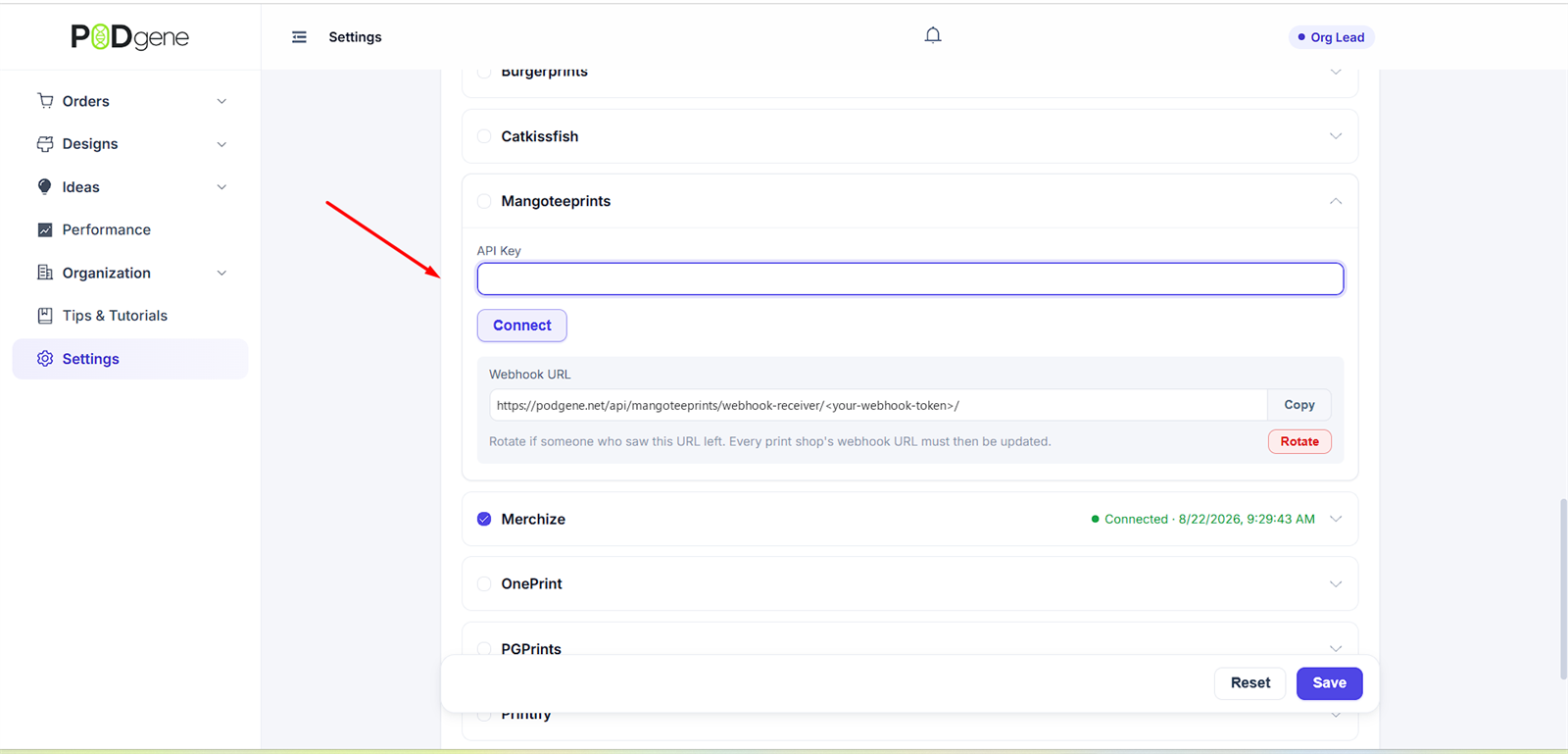
- Open the Mangoteeprints card, paste the key into API Key and press Connect.
- When it reports success, press Save at the bottom of the page — Custom mode only takes effect once saved.
A successful Connect reports:
Connected to Mangoteeprints successfully. Tracking webhook registered automatically.
The Mangoteeprints card is ticked automatically. Orders you send to Mangoteeprints from then on are placed on your own Mangoteeprints account, which pays for printing — Podgene does not deduct the print cost from your balance.
You do not need to copy the Webhook URL into Mangoteeprints: Connect registers it for these events —
order.statusorder.shipment
Pressing Connect again never creates a duplicate webhook (the message then says “already registered”). After you press Rotate on the webhook URL, press Connect again — it replaces the old webhook with the new URL.
If Connect fails
| Message | What to fix |
|---|---|
| This doesn't look like a Mangoteeprints API key | The key was copied incompletely. Copy it again — or create a new key if the dialog is already closed. |
| API Key was rejected by Mangoteeprints | The key was deleted, has expired, or is limited by an IP Whitelist. Create a new key with an empty IP Whitelist. |
| Automatic webhook registration failed … | The key works, but tracking updates will not arrive automatically. Make sure the key keeps all permissions, then press Connect again. |
| Custom mode requires at least one connected print shop (on Save) | Press Connect on the Mangoteeprints card first, then Save. |