

Connect FJpod
FJpod uses a single API token. Connect checks it, and there is no webhook to set up: Podgene checks FJpod for tracking every day.
1 Open API & Documents in FJpod
Log in to your FJpod (F&J Print Factory) dashboard, open API & Documents in the left sidebar and press Create New Token.
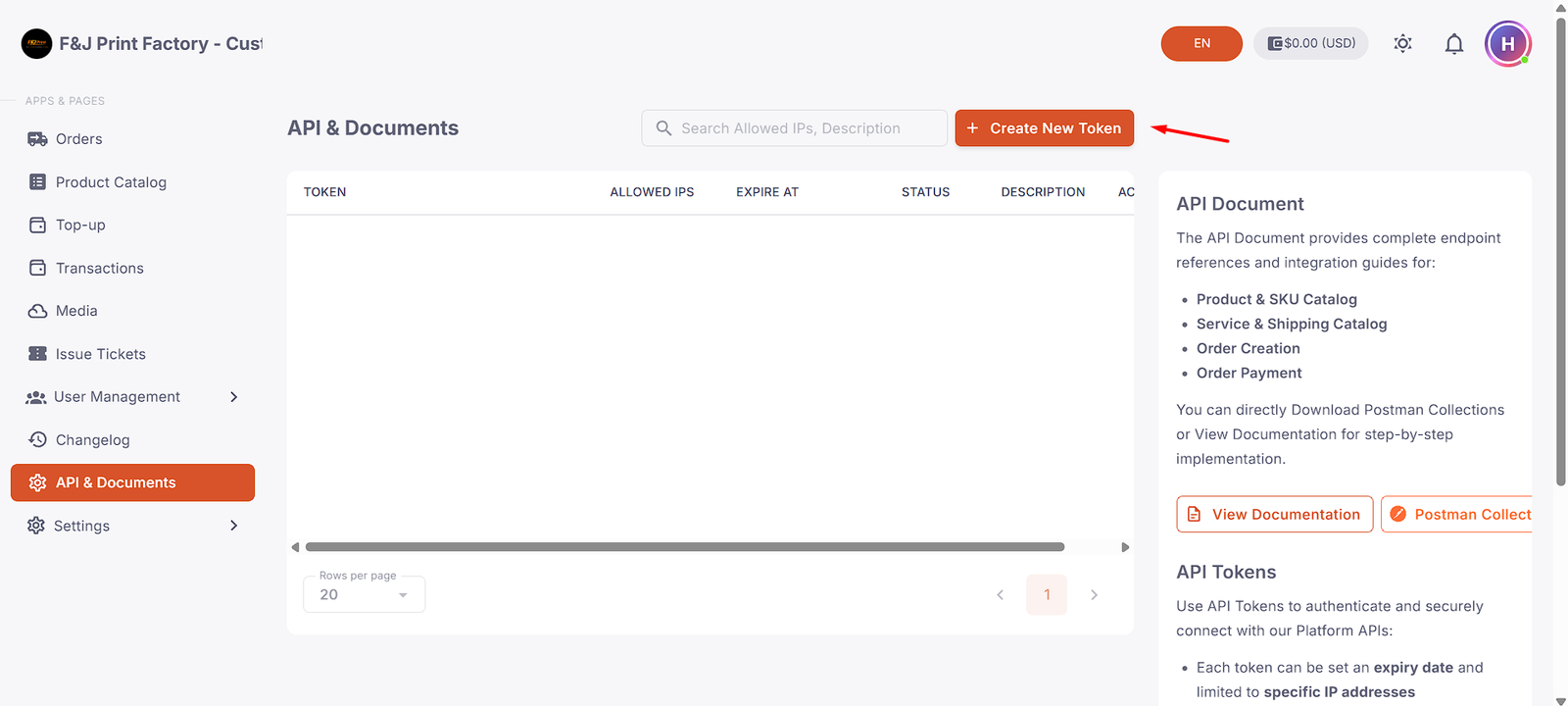
2 Create the token
- Expire period: pick 365 days (1 year). The token stops working on that date — create a new one and press Connect again before then.
- IP Whitelist: type
13.140.66.127and press Enter. That is Podgene's server, so the token only works from Podgene. Leaving the list empty also works. - API Testing: leave it unticked. A testing token creates orders with status Test, and FJpod never prints them.
- Description is optional (for example Podgene). Press Create Token.
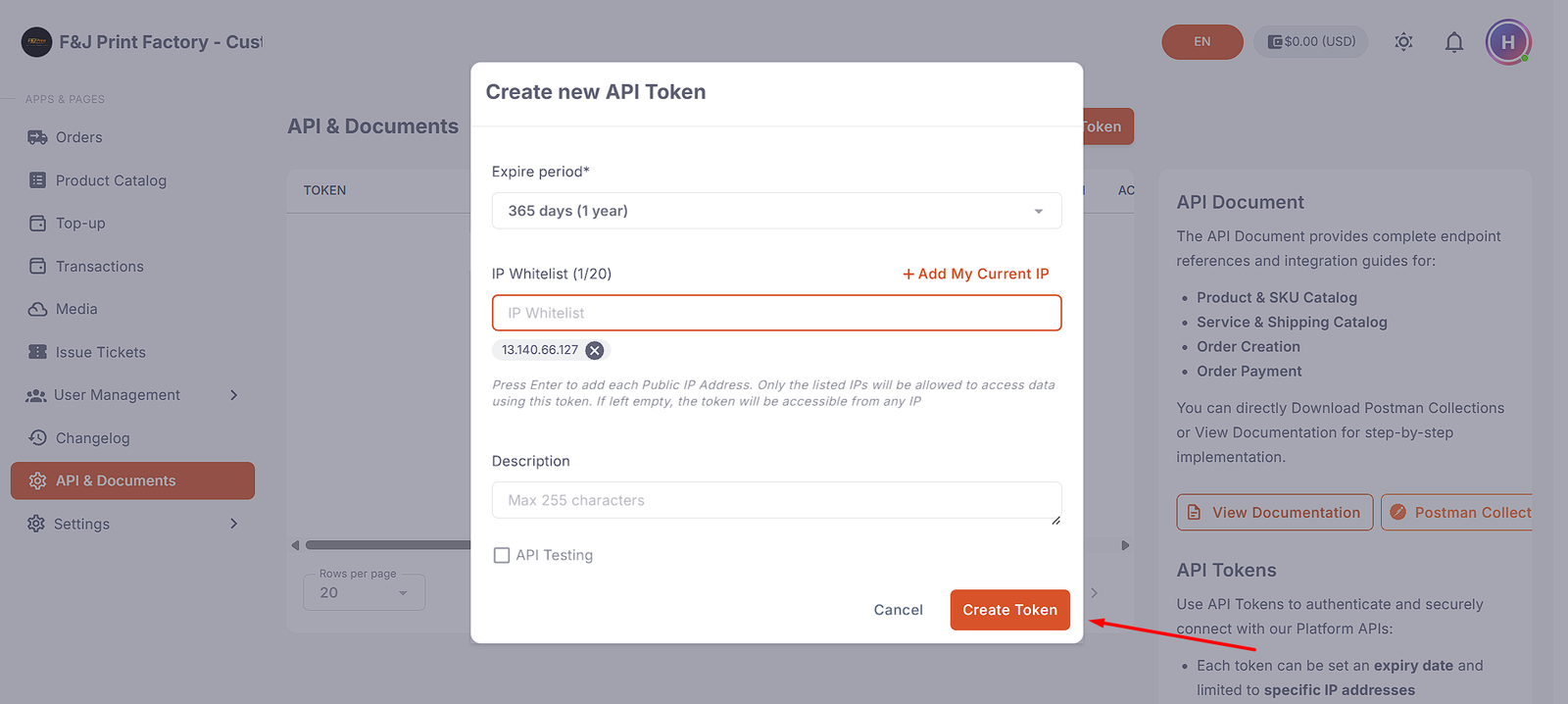
Add My Current IP adds your own computer's address — Podgene does not call FJpod from there. If the whitelist has only your IP, Connect fails.
3 Copy the token
FJpod shows the new token only once. Press Copy & Close.
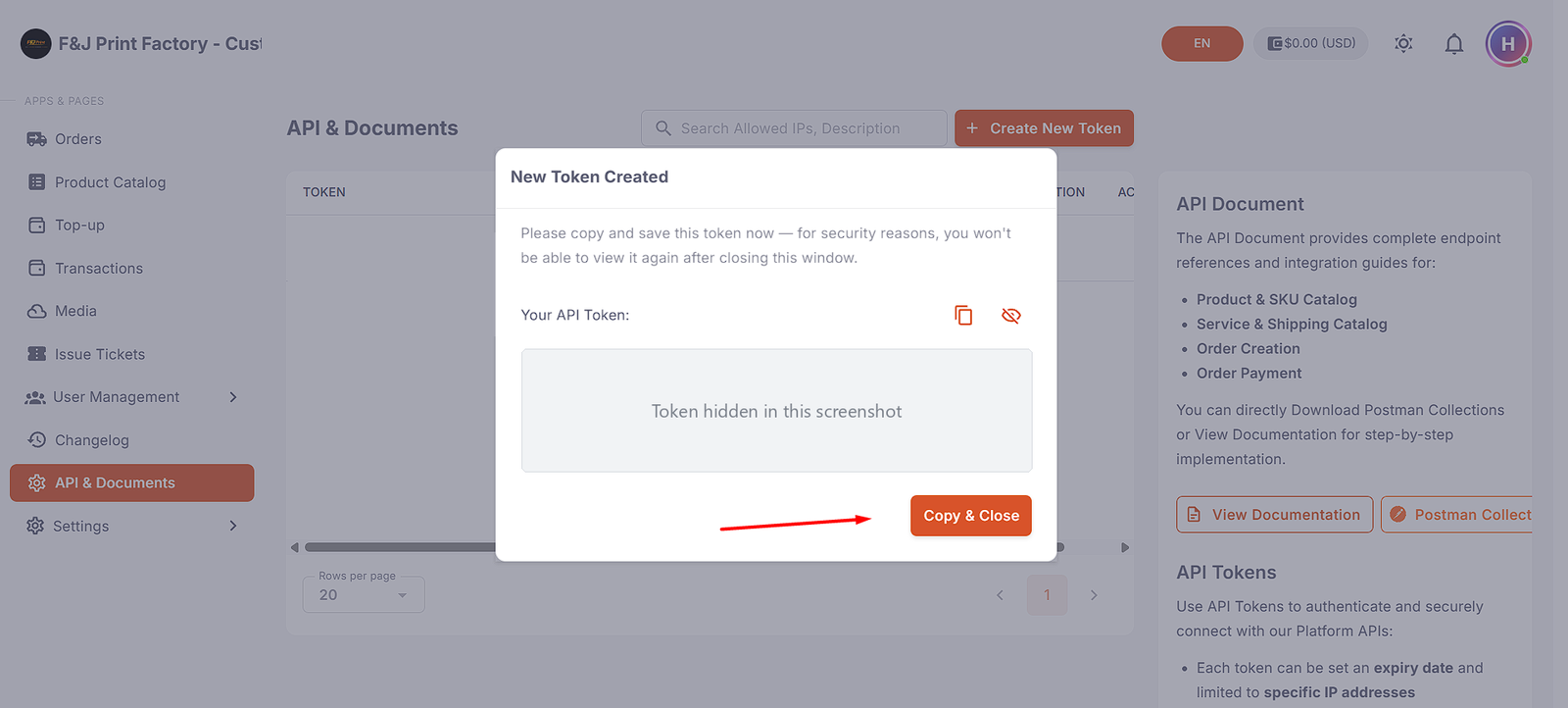
Closed the window before copying? Create another token — the old one can stay or be deleted in the same table. Treat the token like a password: anyone who has it can place orders on your FJpod account and charge your FJpod balance.
4 Connect it in Podgene
- In Podgene, open Settings › Fulfillment Configuration and choose Custom (Your Keys).
- Open the FJpod card, paste the token into API Token, then press Connect.
- When it reports success, press Save at the bottom of the page — Custom mode only takes effect once saved.

A successful Connect reports:
Connected to FJpod successfully.
The FJpod card is ticked automatically. Orders you send to FJpod from then on are placed on your own FJpod account: FJpod charges your FJpod balance when the order is placed, so top it up first. Podgene does not deduct the print cost from your Podgene balance; it reads each order's total from FJpod and fills in its base cost.
Sending an order shows FJpod could not place the order …? FJpod created the order but could not charge it — usually your FJpod balance is too low. Podgene removes the unpaid order from FJpod, so top up and send again.
Untick the FJpod card to stop sending orders to FJpod. Your token stays saved, so ticking it again turns it back on.
5 Shipping and tracking
FJpod prints in the US and ships to US addresses only (ZIP code like 12345 or 12345-6789). In card 2. Printing of an order, choose Ship by FJpod (Standard or Priority) or Ship with your label — FJpod takes PDF labels only.
FJpod has no webhook settings, so there is nothing to set up in FJpod. Every morning (Vietnam time) Podgene asks FJpod about the orders you sent that have no tracking yet — for up to 30 days after sending — and adds the tracking number, carrier and tracking link to the order as soon as FJpod has them.
Podgene reads tracking with your FJpod token, so keep the token while orders are still waiting for tracking. Unticking the FJpod card only stops new orders; tracking keeps coming.
If Connect fails
| Message | What to fix |
|---|---|
| FJpod rejected the API Token | The token was copied incompletely, has expired or was deleted in FJpod. Create a new token and press Connect again. |
| FJpod refused the request: this API Token has an IP whitelist … | The token's IP Whitelist does not contain 13.140.66.127. Create a new token with that IP, or with an empty whitelist. |
| FJpod is rate limiting requests | FJpod allows 200 requests per minute. Wait a minute and press Connect again. |
| FJpod did not respond in time / Could not reach FJpod | FJpod is temporarily unreachable. Try Connect again in a few minutes. |